
Git Stash:
- This is used to temporarily move your uncommited changes to some other location and you can get it whenever and where ever you want within git repository.
- By default,git stash only stashes modified tracked files and staged changes and if we want to include untracked files we need to use -u arg and if we want to include ignored files we need to use -a arg.In realtime we mostly use normal git stash with out any arguments.
$git stash (only stashes tracked files )
$git stash -u (stashes tracked and untracked files in working directory)
$git stash -a (stashes tracked,untracked and ignore files)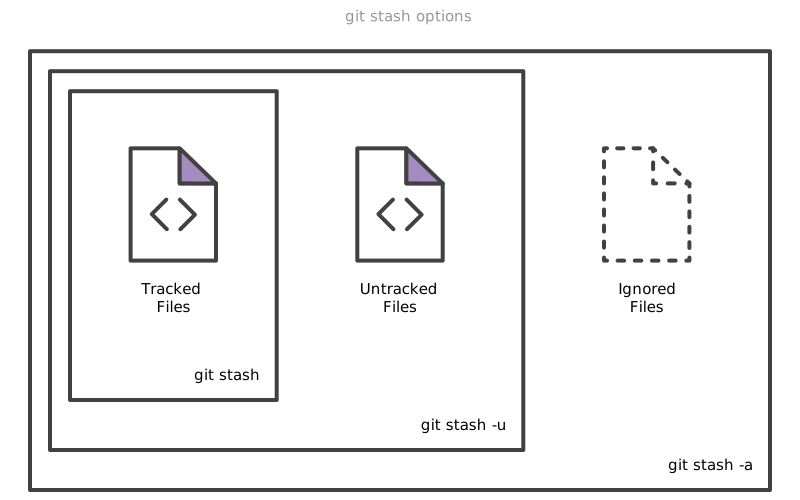
Note:It is good practice to stash with custom message because by default, stashes are identified simply as a "WIP" – work in progress – on top of the branch and commit that you created the stash from. After a while it can be difficult to remember what each stash contains.So to stash with custom message below cmd is used
$git stash save "message you want" - If we want to see list of stashes use the below cmd
$git stash list
- If we want to see list of stashes use the below cmd
 |
The most recently stashed files will get saved in stash@{0}.The first stash was without custom message and second stash was with custom message.
- To get back stashed files there are 2 ways
1)stash apply
It copies stashed files from stash list and paste it where ever you want.We can stash files in one branch and get those files in other branches multiple times using this.
Note:
- Before applying changes all the files should be in unmodified state(i.e git status should result "nothing to commit, working tree clean" ).Even you can apply stashed changes..If the files involved in stash are not modified
- This is beacause, if you modified 2 files say file1 and file2 and you stashed..But after some time you made changes to these 2 files ..When you are about to apply stashed changes,then it will fail..because it don't know where to apply the changes.
- Lets say if you commited these 2 files and now working directory is clean, you applied git stash, since you modified same files, you will get merge conflict and you can resolve it manually.
2)stash pop
It cuts and paste.
If we simply use stash pop or stash apply then most recently stashed files i.e (stash@{0}) will be invoked or if we want to specify our own stash from the list use below cmd
$git stash pop stash@{n}
or
$git stash apply stash@{n}
- To delete stashed files from stash list we use below cmds
$git stash clear - To clear all stashes
Use cases:
Git stashes are mostly used in below cases:
1)Branch switching:
If we are working in a branch and we want to switch to other branch with out commiting files as work in progress then it is highly recommended to stash current branch files else there will be seen in other branches and it will mess with your work.
2)Pulling Code from remote repo:
If we pull code from github or any other remote repo then there will be merge conflict if we have same file on remote repo and local repo.In that case stash files in our local repo and get remote repo code using git pull and merge later.





0 Comments